
You can download the prospects you are looking at, with their data, to a CSV file.
- In the list view, pick the list and set the view you want: filters, search, sort and the columns shown.
- Click the download icon in the table's toolbar (hover text "Download"):
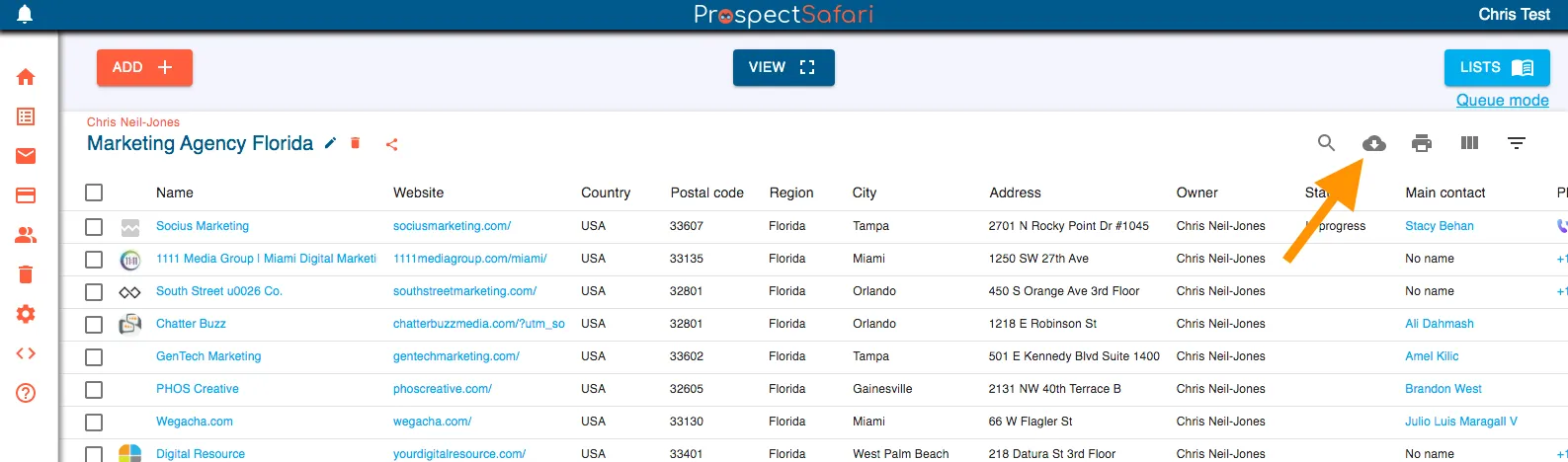
Click on the download icon
- The "Download data" popup opens and says how many rows are selected. Click "Proceed" (or "Current Rows"), then "Download". All columns included in your view are downloaded.
Admins whose workspace has uploads can choose "Previous Csv" instead: pick an uploaded file under "Select a CSV:" and download an enriched version of it. It keeps the headers of the file you uploaded, with the data as it is in ProspectSafari now and extra columns added.
The file holds the rows of the current view (its list, filter, search and sort) and the view's columns. Custom fields are headed "Custom field: <name>", decisions "Custom decision: <name>", and phone numbers get columns per number ("Phone 1: formatted", "Phone 1: original" and so on). The CSV file is downloaded to your computer.
A downloaded file can be uploaded again later: its ProspectSafari ID matches each row to the prospect you already have. See Upload lists.