
For B2B sales prospecting, the company website is usually the primary source of information to decide if this is a good target or not.
The html code that makes up each page of the website can often contain information that is not displayed in a readable form. Of particular interest are the links that connect the website to other external urls. Some of these are common or standard (to access fonts for example) and are not of interest. Others might be links to one of your competitors or suppliers for example.
Do they use a competitor’s system?
For example a vacation rental agency website with a “Book Now” button will be linked to a property management system. If you are selling such systems you will want a prospect list of vacation rental agencies in a region but would like to know if they have a booking system, and if so which one.
ProspectSafari can do this.
First you run a company search to find all the vacation rental agencies in a specific region. Then you set up a Link Listener with the domain of every property management system competitor in the sector. ProspectSafari then looks through each website and identifies any link to a competitor, highlights the link and adds it to your custom “System” field.
To create the Link Listener, go to "Settings" and find "Link Listeners" on the "Link manager" card (admins only). Click "+ New" to add a Listener (up to 3):
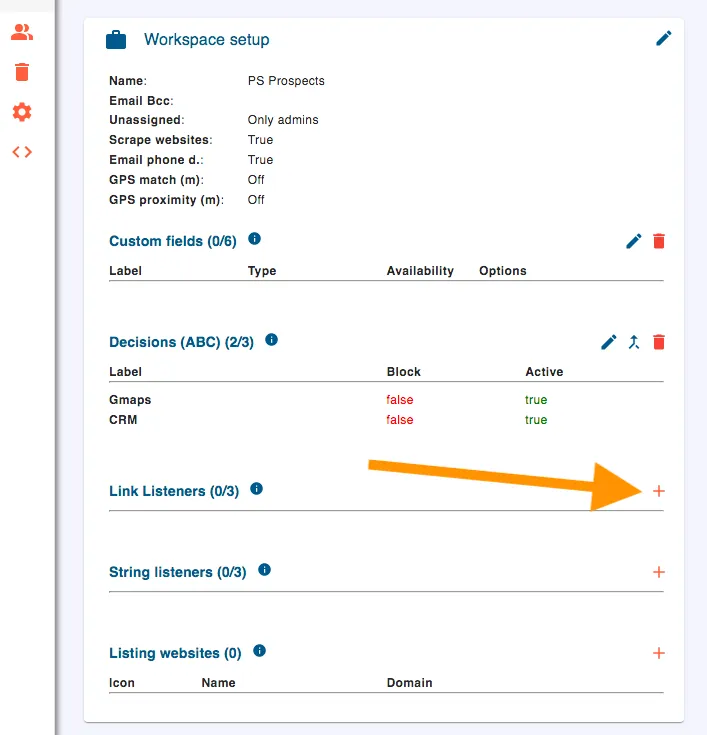
Add a Link Listener in Settings
Give your Listener a "Name" and select the "Type". ProspectSafari shows all the links that it finds as a default. You can create a “Remove” list that tells ProspectSafari not to display certain common, standard links. For links that interest you you will select to highlight them.
You can also select to "Auto fill" a specific field. To do this you will first define a custom field of the type "Multi text" (in this example, "System").
Now simply type in the domain of each competitor under "Links" (eg beddy.io) and "Save" the Link Listener:
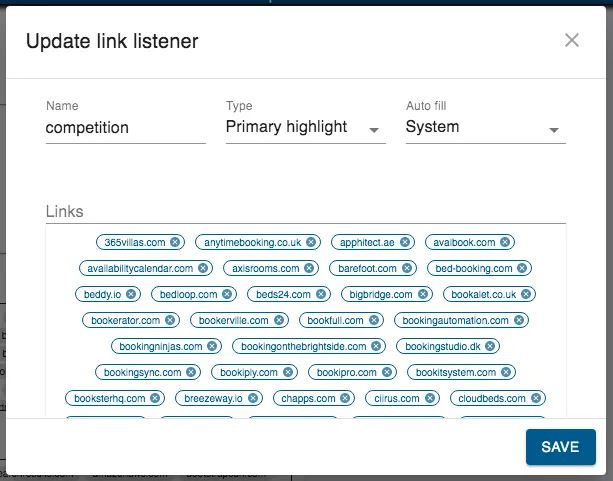
Enter all the links of interest
As soon as the listener is saved, the matching links are added to the System field of every prospect whose website links there, and on later readings of the websites. They are highlighted in the prospect view's "Links" tab, and you can filter and search the list accordingly.
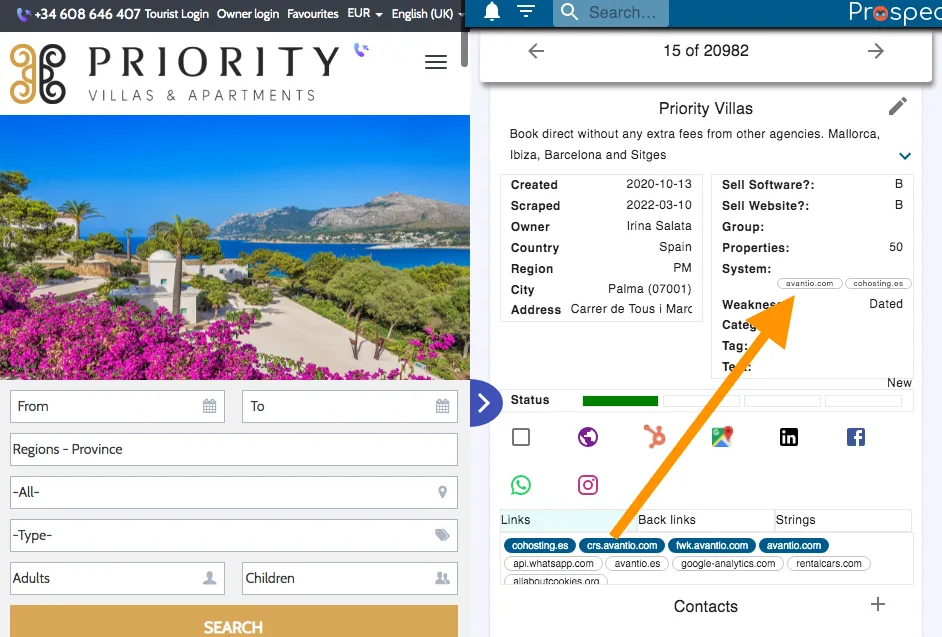
Links of interest are highlighted and added to the System field